
Are you an avid user of online forums and threads? Do you often find yourself frustrated when trying to upload a photo because it’s too large? Well, fear not! In this comprehensive guide, we will walk you through the process of resizing photos for threads, ensuring that your images are perfectly optimized for online sharing. Whether you’re a beginner or a seasoned forum user, this article has got you covered!
Understanding the Importance of Resizing Photos for Threads
Before we dive into the nitty-gritty details of resizing photos, let’s take a moment to understand why it is crucial in the context of online threads. When you upload a photo to a thread, it becomes a part of the overall conversation, adding visual context to your message. However, many forums and threads have limitations on the file size and dimensions of the images that can be uploaded.
If you attempt to upload a photo that exceeds the allowed limits, you may encounter various issues. The photo might take forever to load or fail to display altogether. Additionally, it can disrupt the flow of the thread, making it difficult for other users to navigate and engage with the content. Resizing your photos not only ensures that they meet the thread’s requirements but also enhances the overall user experience.
Choosing the Right Software for Resizing
When it comes to resizing photos for threads, you have several options at your disposal. From online tools to dedicated software, each method has its pros and cons. Let’s take a closer look at some popular resizing options:
1. Online Resizing Tools
Online resizing tools are quick and convenient, allowing you to resize your photos without the need for any software installation. Simply upload your photo, specify the desired dimensions, and let the tool do the rest. Some popular online resizing tools include PicResize, ResizeImage, and Web Resizer.
2. Image Editing Software
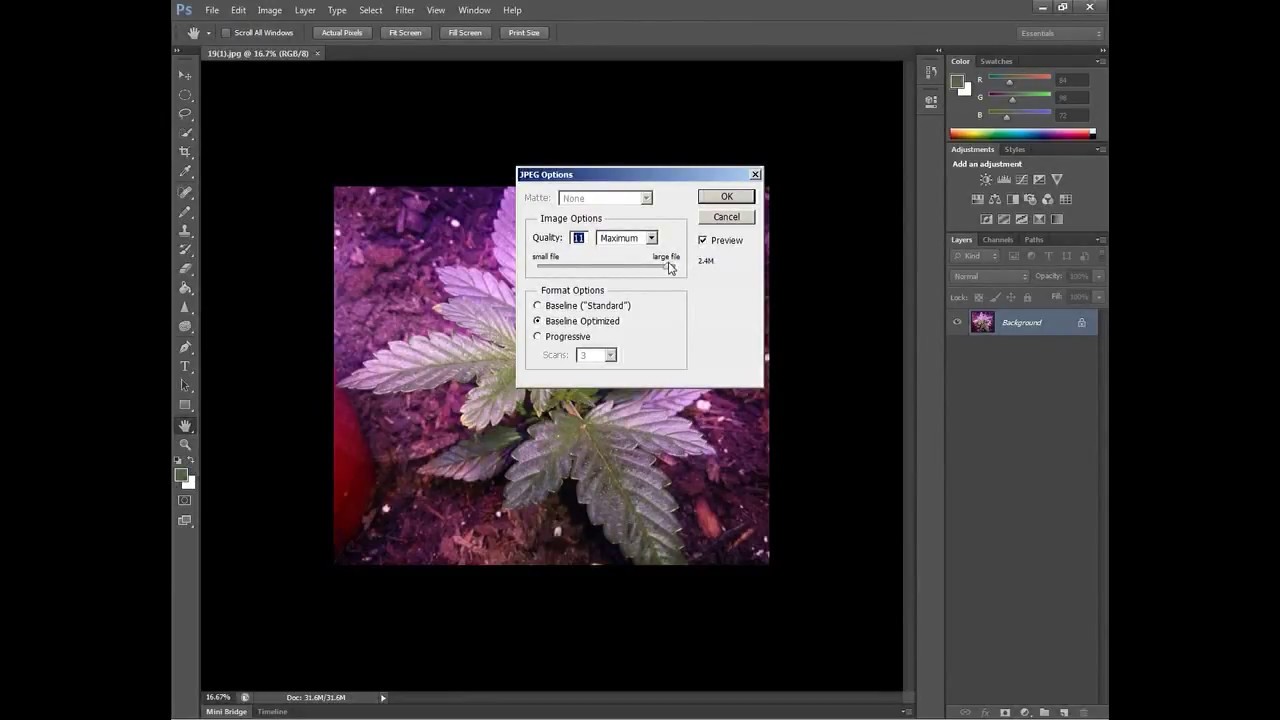
If you prefer more control and flexibility, image editing software such as Adobe Photoshop, GIMP, or Pixlr can be great options. These tools offer a wide range of features, allowing you to not only resize your photos but also make adjustments to color, contrast, and other aspects.
3. Dedicated Resizing Apps
For those who primarily use mobile devices, dedicated resizing apps like Resize Me!, Photo & Picture Resizer, or Simple Resize can be incredibly useful. These apps are designed specifically for resizing photos on the go, making it easy to prepare your images for threads directly from your smartphone or tablet.
Step-by-Step Guide on Resizing Photos for Threads
Now that we have explored the different options for resizing photos, let’s delve into a step-by-step guide to help you resize your images effectively. Follow these instructions, and you’ll be uploading perfectly-sized photos to threads in no time!
Step 1: Determine the Thread’s Photo Requirements
Before you start resizing your photos, it’s essential to understand the specific requirements of the thread or forum where you plan to share them. These requirements typically include maximum file size, image dimensions, and supported file formats. Look for guidelines provided by the thread’s administrators or search for FAQs on the forum to find this information.
Step 2: Select the Right Resizing Tool
Based on your preference and the available options, choose the resizing tool that best suits your needs. If you’re new to resizing, an online tool or dedicated app might be the simplest option. However, if you’re comfortable with image editing software, feel free to use that instead.
Step 3: Open the Photo in the Resizing Tool
Once you’ve selected your preferred resizing tool, open the photo you want to resize. Most tools allow you to either upload the image directly or import it from your device’s photo library. Take a moment to familiarize yourself with the tool’s interface and available options.
Step 4: Specify the Desired Dimensions
In this step, you’ll need to enter the desired dimensions for your resized photo. Depending on the tool you’re using, you may be able to specify the dimensions in pixels, inches, or as a percentage of the original size. Ensure that your chosen dimensions adhere to the thread’s requirements to avoid any issues when uploading.
Step 5: Adjust Additional Settings (Optional)
Some resizing tools offer additional settings that can further enhance your resized photo. These settings may include options to adjust the image quality, compression, or even apply filters and effects. If you’re comfortable experimenting, feel free to explore these settings; otherwise, you can stick to the default options.
Step 6: Save and Export the Resized Photo
After you have specified the desired dimensions and adjusted any additional settings, it’s time to save and export your resized photo. Choose a file format that is widely supported, such as JPEG or PNG, to ensure compatibility with most threads and forums. Be sure to save the resized photo in a location that is easily accessible for future uploads.
FAQs
Q: Can I resize photos without losing quality?
A: Resizing photos inherently involves a reduction in the number of pixels, which can result in a loss of quality to some extent. However, by choosing the right resizing tool and adjusting the settings appropriately, you can minimize the loss of quality and retain a visually appealing image.
Q: How do I know if my resized photo meets the thread’s requirements?
A: Once you have resized your photo, check its file size and dimensions to ensure they fall within the thread’s specified limits. You can typically find this information in the properties or details of the photo file. If you’re unsure, refer back to the thread’s guidelines or consult with fellow forum users.
Q: What if I accidentally resize my photo too small?
A: If you accidentally resize your photo to a smaller size than intended, don’t worry! Most resizing tools offer an undo or revert option that allows you to revert to the original size. Alternatively, you can always repeat the resizing process, ensuring to enter the correct dimensions this time.
Conclusion
Congratulations! You’ve now mastered the art of resizing photos for threads. By understanding the importance of resizing, choosing the right tools, and following our step-by-step guide, you can effortlessly optimize your images for online sharing. Remember, resizing photos not only ensures compatibility with thread requirements but also enhances the overall user experience. So go ahead, resize your photos, and join the vibrant conversations happening on your favorite forums and threads! Happy resizing!