
Have you ever tried posting an image on a thread only to find that it’s too large and ends up looking pixelated or distorted? It can be frustrating, especially when you want to share a beautiful image with others. But fear not, because in this article, we’ll walk you through the process of resizing images for threads. Whether you’re a seasoned forum user or a newbie, this guide will equip you with the knowledge and tools to resize your images like a pro.
Understanding the Importance of Image Resizing
Before we dive into the nitty-gritty of resizing images for threads, let’s take a moment to understand why it’s essential. When you post an image on a forum or thread, the platform usually has specific size restrictions. If your image exceeds these limitations, it can result in a poor user experience. Oversized images can take longer to load, which can frustrate users with slower internet connections. Additionally, large images can disrupt the overall layout of the thread, making it difficult for users to navigate and read the content.
On the other hand, shrinking an image too much can make it lose its quality and clarity. You want your image to look sharp and visually appealing, not like a blurry mess. Finding the right balance between file size and image quality is crucial when resizing images for threads.
Choosing the Right Image Resizing Tool
Now that we understand the importance of resizing images, let’s explore some of the popular tools you can use to accomplish this task. There are several online tools and software available, each with its own set of features and functionalities. Here are a few options to consider:
1. Online Image Resizers
Online image resizers are convenient and straightforward to use. They require no installation and can be accessed from any device with an internet connection. Some popular online image resizers include:
-
PicResize: This web-based tool offers a user-friendly interface and allows you to resize images by specifying the desired dimensions or by percentage scaling.
-
ResizeImage.net: With ResizeImage.net, you can resize your images while maintaining their aspect ratio. It also offers additional editing features like cropping and rotating.
2. Image Editing Software
If you prefer a more advanced editing experience, image editing software might be the way to go. These programs provide more control over the resizing process, allowing you to fine-tune various aspects of your image. Some popular image editing software options include:
-
Adobe Photoshop: Photoshop is a powerful tool used by professionals worldwide. It offers a wide range of features, including resizing, cropping, and enhancing images.
-
GIMP: GIMP is a free and open-source image editing software that provides a comprehensive set of tools for resizing and editing images. It’s a great option for those on a budget.
Resizing Images Using Online Image Resizers
In this section, we’ll walk you through the process of resizing images using an online image resizer. We’ll be using PicResize as an example, but the steps should be similar for other online resizers.
-
Access the Online Image Resizer: Open your preferred web browser and navigate to the PicResize website.
-
Upload Your Image: Click on the Browse button or drag and drop your image file into the designated area on the website. Once the upload is complete, you’ll see a preview of your image.
-
Choose the Resizing Options: Look for the Resize Your Picture section or similar options on the website. Here, you can specify the desired dimensions for your image. Alternatively, you can choose to scale the image by a certain percentage.
-
Preview and Save: After specifying the resizing options, click on the Resize Picture or similar button to preview the resized image. If you’re satisfied with the result, click on the Save to Disk or Download button to save the resized image to your computer.
Resizing Images Using Image Editing Software
If you prefer a more hands-on approach and have image editing software installed on your computer, follow these steps to resize your images:
-
Open the Image: Launch your preferred image editing software and open the image you want to resize.
-
Access the Resize Tool: Look for the Resize or Image Size option in the software’s menu. In Photoshop, you can find this option under the Image menu.
-
Specify the New Dimensions: In the resize dialog box, enter the desired width and height for your image. Make sure to maintain the aspect ratio to avoid distorting the image.
-
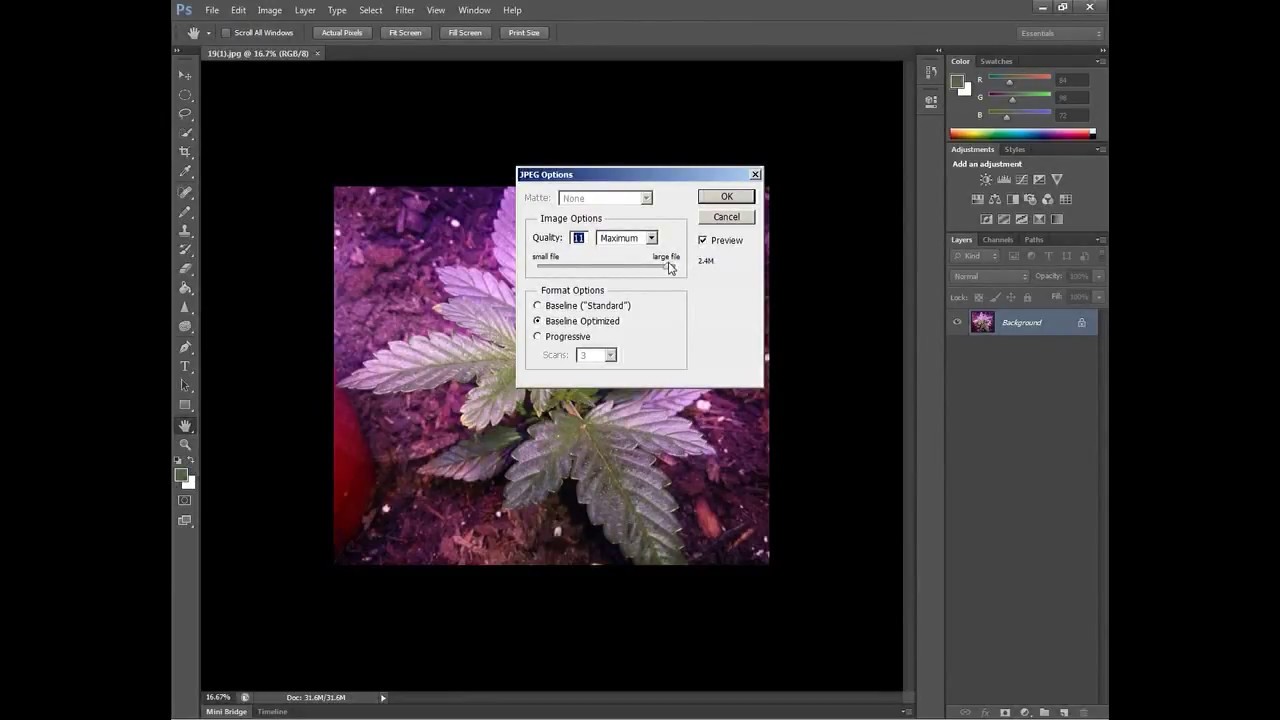
Preview and Save: After specifying the new dimensions, the software will display a preview of the resized image. Take a moment to review the result and make any necessary adjustments. Once you’re satisfied, save the resized image to your computer.
Frequently Asked Questions
Q: Can I resize an image without losing its quality?
A: When resizing an image, there is always a possibility of some loss in quality. However, using high-quality resizing algorithms and choosing the right resizing settings can help minimize the loss of quality.
Q: What is the ideal image size for threads?
A: The ideal image size for threads can vary depending on the platform and its specific guidelines. As a general rule of thumb, aim for a file size below 1 MB and dimensions that fit within the thread’s layout without causing horizontal scrolling.
Q: Are there any other factors to consider when resizing images for threads?
A: Yes, apart from the image dimensions and file size, you should also pay attention to the file format. JPEG is commonly used for photographs, while PNG is ideal for images with transparency. Choosing the right format can help optimize the image for web use.
Conclusion
Resizing images for threads doesn’t have to be a daunting task. With the right tools and a basic understanding of the process, you can quickly resize your images to fit within the thread’s requirements without sacrificing quality. Whether you choose to use online image resizers or image editing software, remember to strike a balance between file size and image quality. By following the steps outlined in this guide, you’ll be able to share visually stunning images on threads and enhance the overall user experience. So go ahead, resize those images, and make your threads shine!